Add iRecipes to your share sheet
Getting started
Enable Quick Import once and every recipe you find is two taps away.
-
Open the share menu
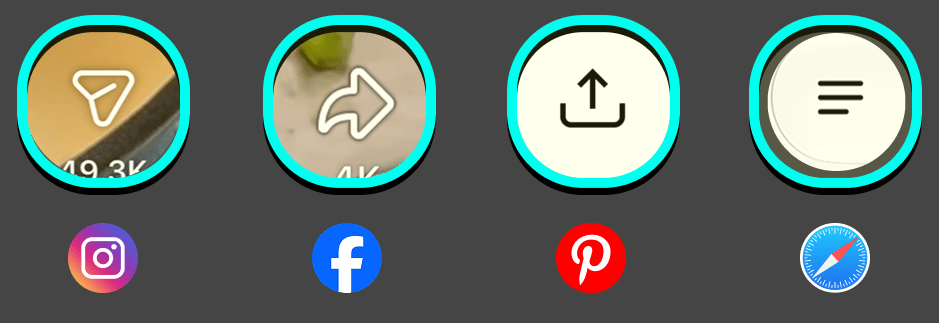
Find a recipe on a website or in a social app and tap the Share button.
-
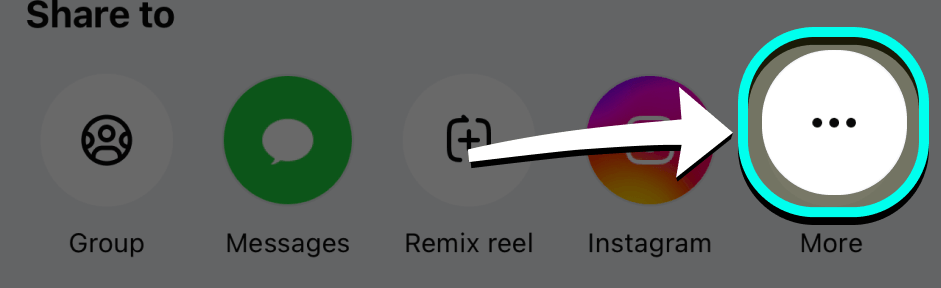
Swipe to the end of the app row
In the row of app icons, swipe all the way to the left until you reach More. On Instagram you may need to tap Share a second time first.
-
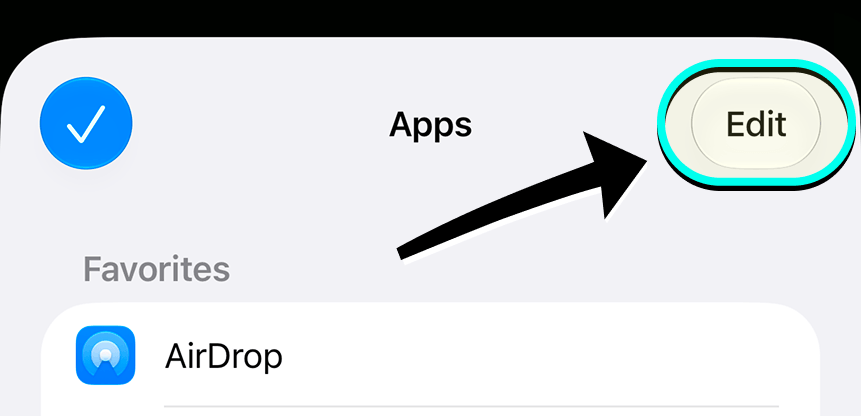
Tap “More”, then “Edit”
Choose Edit to customise which apps appear in your share sheet.
-
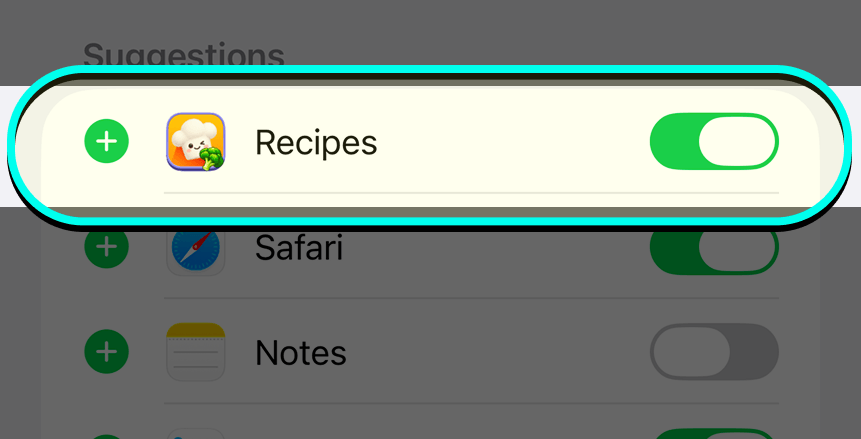
Turn on iRecipes
Find iRecipes in the list and tap the + next to it. If iRecipes does not appear, restart your iPhone once and check again.
-
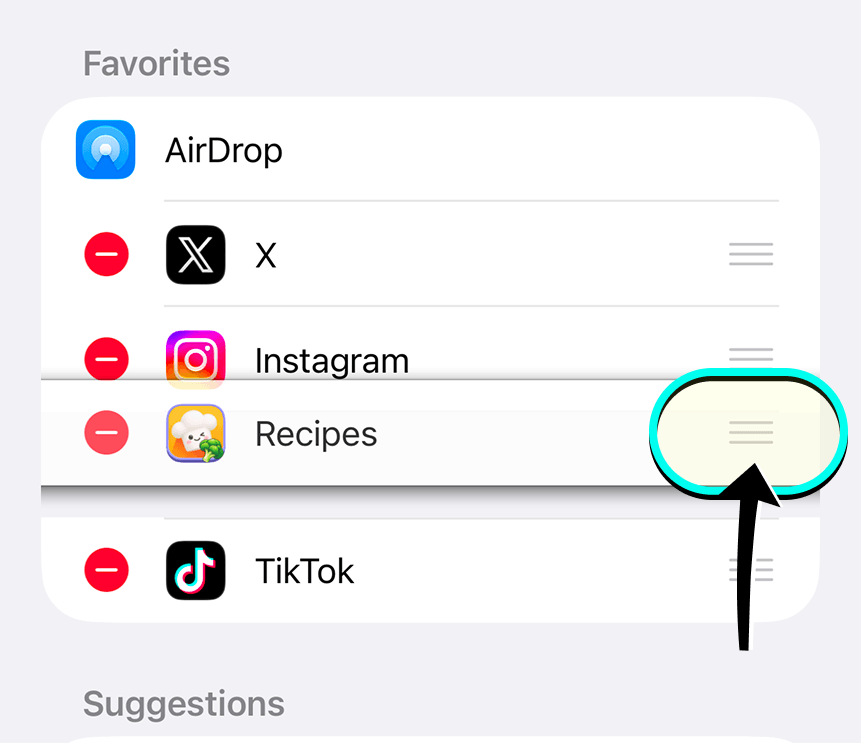
Move iRecipes up (optional)
Drag iRecipes into your favourites so it is always near the front of the row.
-
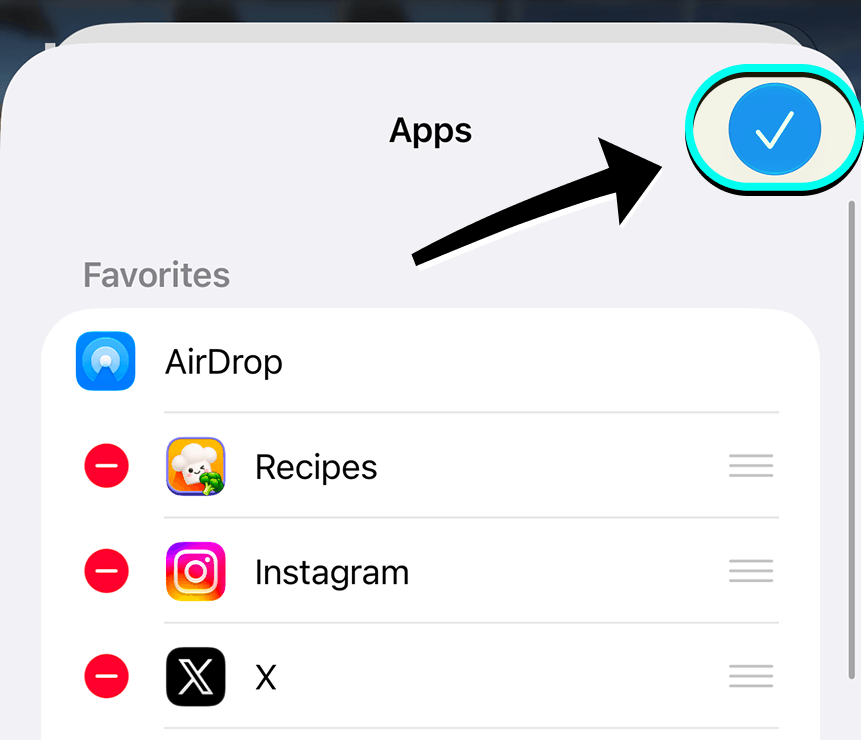
Save
Tap Done. The next time you share a recipe, tap the iRecipes icon — your recipe is imported, reviewed and saved to your library.
 Import from Instagram
  Import from TikTok
  Import from YouTube
  Import from Facebook
  Import from Pinterest
  Import from WhatsApp
  Import from Safari
  Import from Chrome
 Video tutorial
Got feedback?
Send us an email if you have any feedback or need help. We look forward to hearing from you.